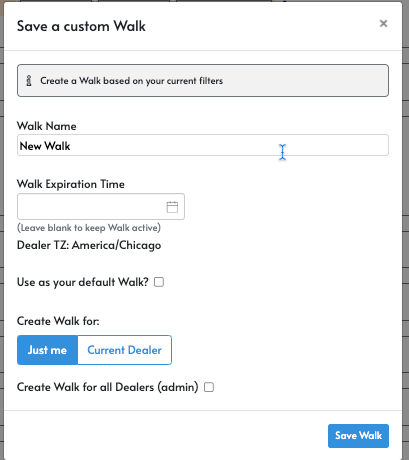
Once you filter and set a plan that you want our Dealer Partner to work for a duration of time, please click 'Save Walk' at the bottom left window of the filter:

When saving the walk, you have several options to save the walk:
- You can create the walk for 'just me'.
- This will make it visible to just you or whoever is setting up the walk
- You can create the walk for 'Current Dealer'.
- This will make it visible for all from that dealership to see the Work Plan
- Under 'Walk Name' start the title of the saved walk with the date that you are starting this work plan and if it is a walk saved for the Lead side or Inventory side.
- Example: 8/1 INV. 31-45 day inventory no leads
- Example: 8/1 LEADS non fran in stk.
- If there is a major set that you want the dealer to see and work the minute they open up LotWalk, click the 'Use as your default Walk' box.
- You can set an expiration time us. ***Note, if you set an expiration up, it is best practice to set the date to expire for 2 days past your next meeting date. This way it is almost assured to be up and visible for review during the next meeting.
- Once done, simply click 'save walk' at the bottom right.